Using the Namalysator > File Explorer
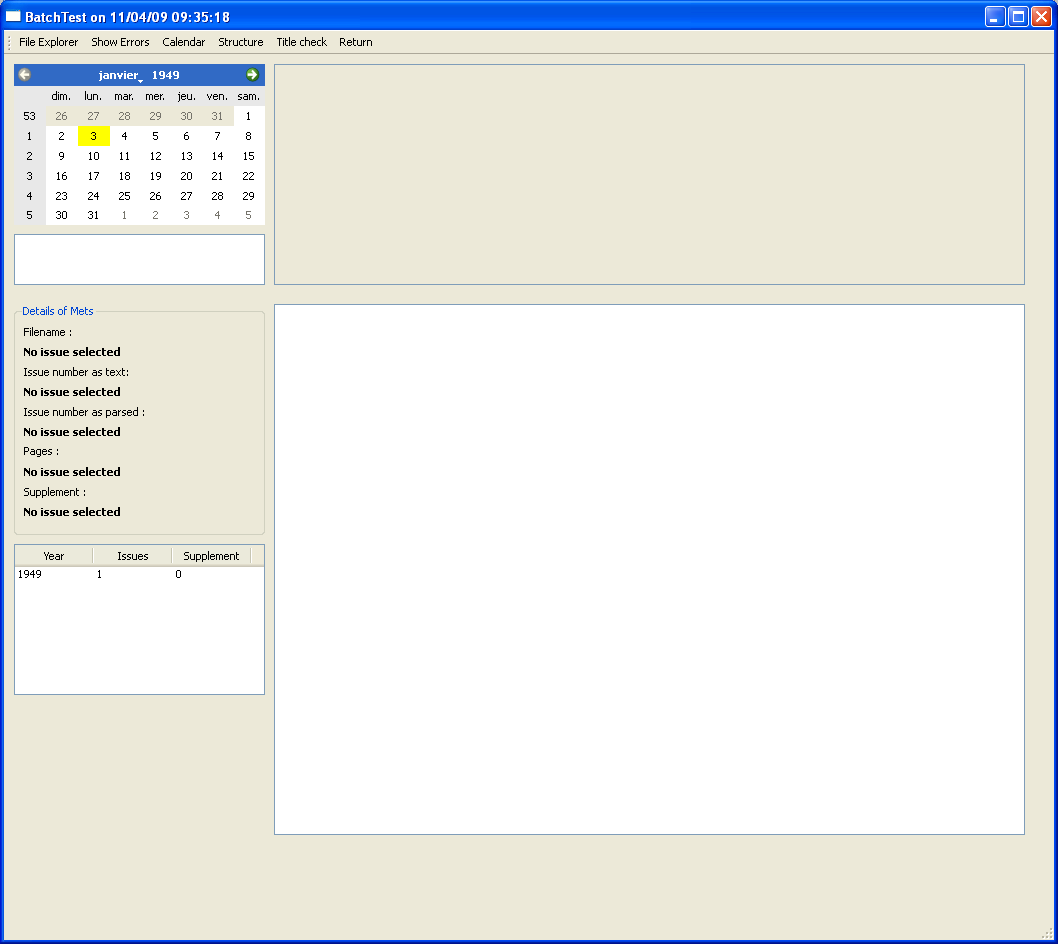
The file explorer lets you navigate through the contents of the batch using a calendar interface. On the top left is a calendar with buttons to change the month and comboboxes to change the months and year. When a calendar day is yellow, then a METS/ALTO file with that date is present in the batch. Clicking on the yellow entry brings up more details.
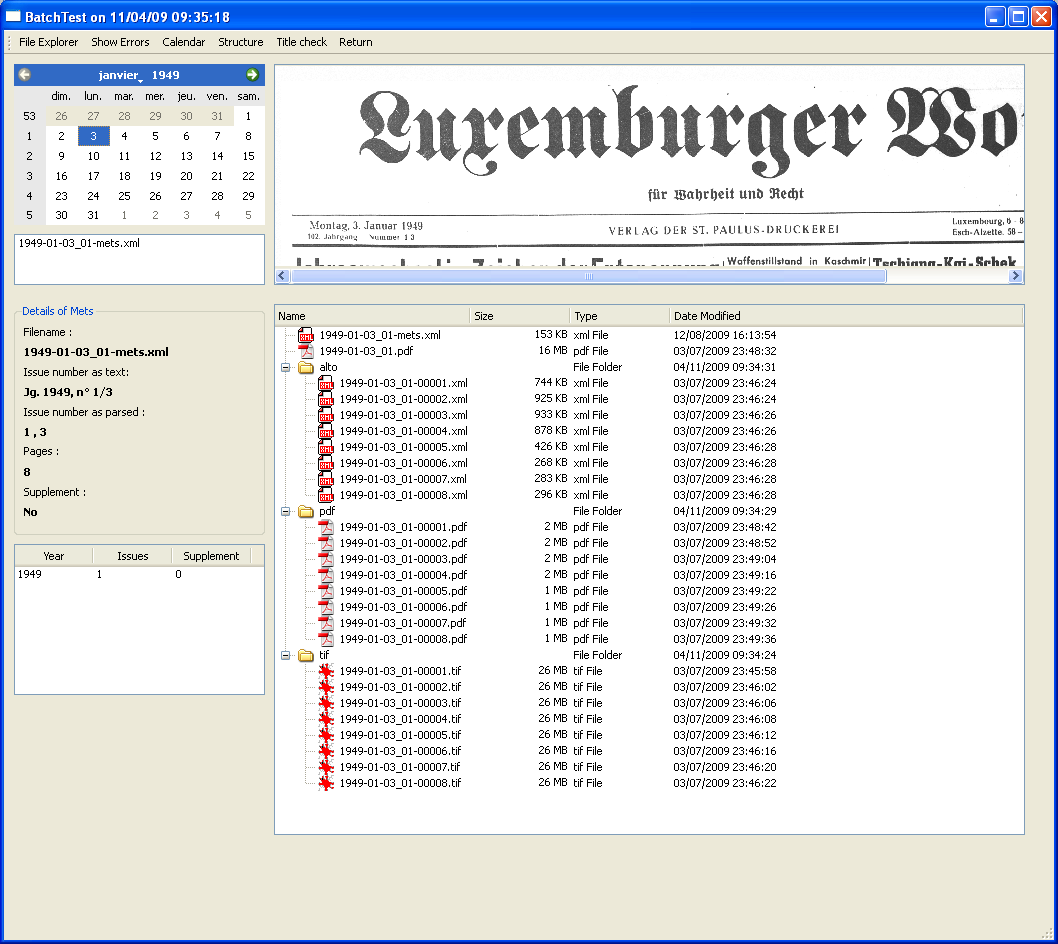
Just below the calendar is now a list of METS files that are present for that day. If there are several, you can switch between them by clicking on their filename here.
The details of METS pane gives more detailed information about the metadata inside the METS file. It gives the issue number, as taken from the MODS section for MODSMD_ISSUE. The issue numbers are important, because they are a quite (if not always) reliable indicator of whether there are missing files or duplicates. Missing files can be detected by gaps in the issue numbers and duplicates when the same issue number repeats for a later METS file. It further gives the number of pages in the document and whether it contains a supplement, as parsed by checking for a SUPPLEMENT in the logical structure.
The table below gives an overview of all the different years present in this batch, so that you don't get lost in the calendar.
When you have selected a METS file, you will see a preview of the first page on the top right. This can be used to check things such as issue numbers or general picture quality. The image is read from the disk where the original data is stored. So this disk has to be connected when the program is used.
Below, you will see the contents of the folder containing the METS file and its subfolders. From here you can open the files in external viewers.
Using the Namalysator > File Explorer